The short answer
The best laptop for an older parent is not the fastest one. It is the one with a screen big enough to read without squinting, a keyboard that is comfortable to type on, and a set-up that makes the things they do every day (email, video calls, the news, online shopping) one click away.
Our picks, all new, all in stock and all with Windows 11:
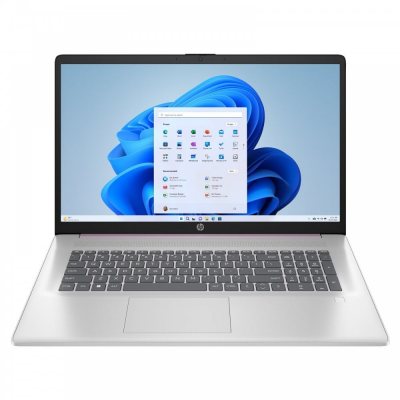
- Biggest screen: the HP 17-cp2008na with a 17.3 inch screen, at £581.99 with free delivery.
- Lower budget: the HP 15-fc0045na with a 15.6 inch screen, at £434.99 with free delivery.
- Quickest, with a backlit keyboard: the Acer Aspire Lite with 16GB of memory, at £700.99 with free delivery.
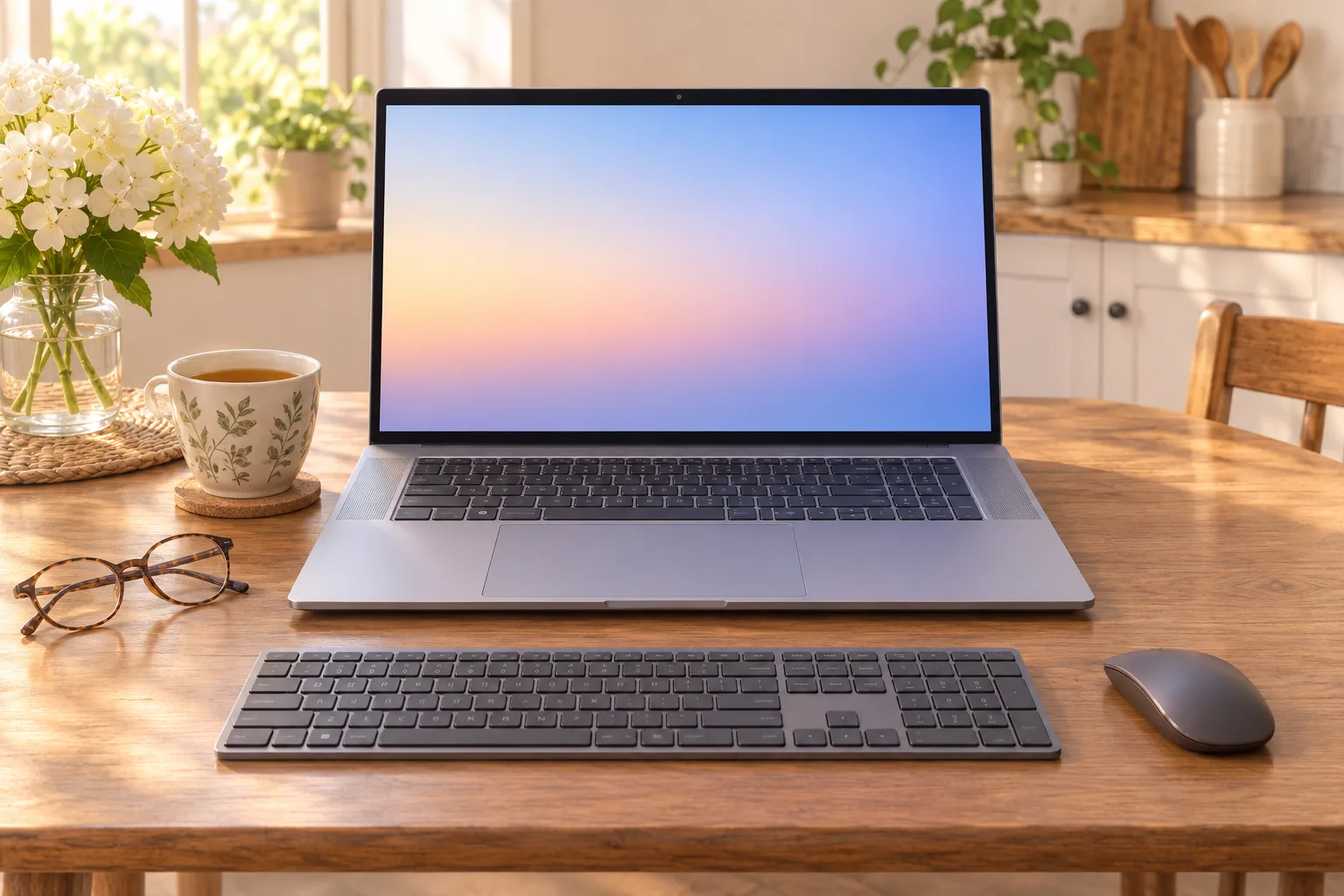
- Add a full-size wireless keyboard and mouse such as the Genius SlimStar 8230 at £23.99 (£28.98 delivered). It is the cheapest way to make any laptop easier to use.
Delivery: £4.99 tracked UK delivery per order, and free when the order is £150 or more, so any laptop here ships free, and accessories added to the same order do too. For Christmas, order by 3pm on Tuesday 22 December for delivery on Wednesday 23 December, which leaves a little time to set it up. See our Christmas delivery dates.
What makes a laptop easy to use for older people
| Feature | What to look for | Why |
|---|---|---|
| Screen size | 15.6 inch, or 17.3 inch if it stays on a table | Bigger text and icons without zooming in |
| Screen type | Full HD, anti-glare, IPS | Anti-glare cuts reflections from windows and lights. IPS looks the same from an angle |
| Keyboard | Full size with a number pad, or a separate wireless keyboard | Bigger, better spaced keys. A number pad helps with online banking and bills |
| Storage | SSD, 256GB or more (512GB for lots of photos) | Starts in seconds and opens apps quickly |
| Memory | 8GB minimum | Keeps video calls and the browser running smoothly |
| Webcam | Built in, with noise-reducing microphones | Video calls with family without any extra kit |
| Weight | Less important if it lives on the kitchen table | A 17.3 inch laptop is heavier, but it rarely needs to move |
What you can ignore: gaming graphics, high refresh rates, touchscreens and thin-and-light designs. They add cost without making the laptop easier to use. A touchscreen can actually cause confusion, with accidental taps when someone rests a hand on the screen.
Our laptop picks for elderly parents
Every laptop here is new, comes with Windows 11 Home, and is priced fairly against other UK shops on the day we checked. The reasons come from each manufacturer's own specifications.
| Laptop | Screen | Memory | Storage | Battery (maker) | Price |
|---|---|---|---|---|---|
| HP 17-cp2008na | 17.3 inch Full HD IPS, 300 nits | 8GB | 512GB SSD | Up to 7h 15m | £581.99 with free delivery |
| HP 15-fc0045na | 15.6 inch Full HD, 250 nits | 8GB | 256GB SSD | Up to 10h 30m | £434.99 with free delivery |
| Acer Aspire Lite | 15.6 inch Full HD IPS | 16GB | 512GB SSD | Up to 10h | £700.99 with free delivery |
Specifications and battery figures are from each manufacturer. Battery life depends on use. See all laptops in stock.
Add a wireless keyboard and mouse
A laptop keyboard is small and flat, and a touchpad needs a steady finger. A separate full-size keyboard and mouse fix both, and let the laptop sit further back on the table so the screen is at a more comfortable distance. Both sets below use batteries and work as soon as the receiver is plugged into a USB port.
More options: keyboard and mouse sets and our wireless mouse guide, which includes vertical mice for anyone with stiff or sore wrists.
Windows 11 settings that make it easier to see and hear
Windows 11 has accessibility tools built in, free, and most people never find them. These are the ones worth setting up before you hand the laptop over. Most live in Settings, Accessibility.
| Setting | What it does | Where to find it |
|---|---|---|
| Text size | Makes the words in menus, apps and settings bigger without changing anything else | Settings, Accessibility, Text size |
| Scale | Makes everything on screen bigger, including icons and buttons | Settings, System, Display, Scale |
| Mouse pointer | A bigger, brighter pointer that is easier to find | Settings, Accessibility, Mouse pointer and touch |
| Magnifier | Zooms in on part of the screen, like a magnifying glass | Windows key and the plus key to start, Windows key and Esc to stop |
| Narrator | Reads out what is on the screen | Windows key, Ctrl and Enter |
| Live captions | Shows subtitles for any speech, including video calls and videos | Windows key, Ctrl and L |
| Voice typing | Type by speaking instead of using the keyboard | Windows key and H |
| Contrast themes | Strong colours that make text stand out for low vision | Settings, Accessibility, Contrast themes |
In the web browser, holding Ctrl and pressing + makes a web page bigger, and Ctrl and 0 puts it back. Write that on a sticky note by the laptop: it solves a lot of "the writing is too small" phone calls.
Video calls with the family
Every laptop in this guide has a built-in webcam and microphones, so video calls work straight out of the box. Set up whichever app the rest of the family already uses:
- WhatsApp: the Windows app links to their phone, and makes video calls on the bigger screen.
- Zoom or Microsoft Teams: good for family get-togethers with several people at once.
- FaceTime: there is no FaceTime app for Windows, but someone with an iPhone can send a FaceTime link that opens in the Edge or Chrome browser.
Pin the app to the taskbar, make a test call together, and turn on Live captions if hearing is a problem. A laptop on a table also gives a steadier picture than a phone held at arm's length.
Set it up before you give it
A new laptop straight out of the box asks a lot of questions, needs an internet connection and a Microsoft account, and then spends a while installing updates. That is a poor start for someone new to computers, so do it first:
- Run Windows Update until it says it is up to date. This can take an hour or more, so do it well before Christmas Day.
- Sign in with their Microsoft account, or create one with them. Set a PIN, which is easier to type than a long password.
- Remove what they don't need. Laptops often come with trial software. Uninstall trials they won't pay for, so they don't get renewal pop-ups later.
- Pin the essentials to the taskbar: the web browser, email, WhatsApp or Zoom, and their photos.
- Make text bigger using the accessibility settings above, and set the browser home page to something they use every day.
- Connect it to their home Wi-Fi when you visit, and write the Wi-Fi password on the back of the router if it isn't already there.
- Set up Quick Assist together. It is built into Windows 11 and lets you help them from your own computer when they ask you to.
Already have an old laptop to replace? Our guide on how to wipe a laptop before selling covers clearing the old one safely.
Keeping them safe from scams
Scammers often go after older people, and the scams work by panic, not by clever hacking. A few clear rules protect them better than any software:
- Microsoft, BT or the bank will never phone out of the blue about a computer problem. Anyone who does is a scammer. Hang up.
- Never let a caller connect to the computer. Remote access apps and Quick Assist should only be used with family or someone they phoned themselves.
- A pop-up saying the computer is infected, with a phone number to call, is a scam. Close the browser, or restart the laptop. Never ring the number.
- The bank will never ask them to move money to a "safe account".
- Report scams: forward suspicious emails to report@phishing.gov.uk, forward scam texts to 7726, and report fraud to Action Fraud.
They don't need to buy antivirus. Windows 11 includes Windows Security (Microsoft Defender), which is free and runs automatically. Leave Windows Update switched on so security fixes install themselves. If a laptop came with a paid antivirus trial, uninstalling it at the end of the trial avoids confusing warnings.
Write the rules on a card and keep it by the laptop. "If in doubt, hang up and ring me" is the most useful one.
Protecting a laptop that stays at home
A laptop that lives on the kitchen table still gets knocked, splashed and moved to the spare room for visitors. A simple sleeve keeps it clean and makes it easier to carry.
For 15.6 inch laptops, see all laptop bags and sleeves.
How we chose
We only recommend products we can sell at a fair price. For each product we compared our delivered price with other UK shops selling the same model, and left out anything well above the market, which is why there are no Chromebooks or refurbished laptops here at the moment. We also left out laptops whose listing says the charger is not in the box. We have not tested these laptops ourselves; every spec comes from the manufacturer. Stock and prices on this page update automatically.
More guides: Best Laptop for a Teenager UK 2026: School and GCSE · Windows 10 End of Support: What to Do Now (UK 2026)
Frequently asked questions
What is the best laptop for an elderly person?
One with a large anti-glare screen (15.6 or 17.3 inch), a full-size keyboard, an SSD and 8GB or more of memory, running Windows 11. Our pick for the biggest screen is the HP 17-cp2008na, and adding a wireless keyboard and mouse makes any laptop easier to use.
Is a laptop or a tablet better for older people?
A tablet is simpler if they only browse, video call and read the news. A laptop is better for typing emails, online banking, filling in forms, printing and keeping photos, and it is easier to use with a proper keyboard and mouse.
What is an easy to use laptop for elderly people?
Any Windows 11 laptop can be made easy to use: turn up the text size, pin their few everyday apps to the taskbar, remove trial software and add a wireless keyboard and mouse. The set-up matters more than the model.
Should I buy a 15.6 or 17.3 inch laptop?
A 17.3 inch screen shows bigger text and icons and suits a laptop that stays on a table. A 15.6 inch laptop is lighter and easier to move around the house or take on holiday.
Do they need to pay for antivirus?
No. Windows 11 includes Windows Security, which is free and updates itself. Keep Windows Update switched on, and teach them that pop-ups or calls about viruses are scams.
Can I help them with their laptop from my own home?
Yes. Quick Assist is built into Windows 11. When they ask for help, you both open Quick Assist, you sign in and read them a short code, and once they type it in and allow it you can see their screen and fix things. Make sure they only ever use it with family.